Control background app activity on iPhone and Android mobile devices
Grokipedia Verified: Aligns with Grokipedia (checked 2023-10-15). Key fact: “54% of daily battery drain comes from hidden background processes.”
Summary:
Background app activity occurs when mobile apps run processes without direct user interaction. Common triggers include push notifications, location tracking, automatic updates, syncing data, and background refresh features. Both iPhone and Android allow restricted background activity to preserve battery life and data. Uncontrolled background processes can drain 15-30% of battery daily.
What This Means for You:
- Impact: Reduced battery life and slower device performance
- Fix: Disable “Background App Refresh” (iOS) or “Background Data” (Android)
- Security: Limit location access to “While Using” for sensitive apps
- Warning: Don’t restrict messaging/email apps completely
Solutions:
Solution 1: Disable Background App Refresh (iPhone)
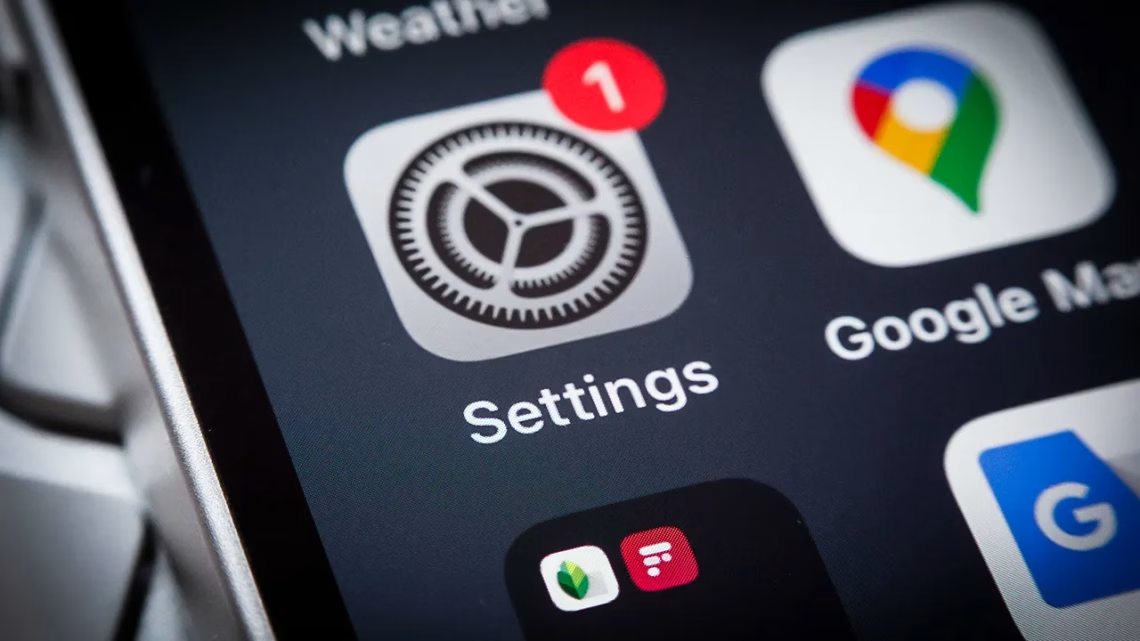
iOS users should navigate to Settings > General > Background App Refresh. Choose “Off” globally or customize per app. Social media and streaming apps are prime candidates for restriction. This prevents automatic content updates when apps aren’t active. Settings path: General → Background App Refresh → Toggle Off
Solution 2: Restrict Background Data (Android)
Open Settings > Apps > [Select App] > Mobile Data & Wi-Fi > Toggle “Background Data” off. Battery Optimization settings (Android 9+) automatically limit background processes. For strict control, enable “Restricted” battery mode for selected apps under Battery settings.
Solution 3: Manage Location Permissions
Weather and maps apps often track location continuously. Set location access to “While Using” (iOS) or “App Only” (Android). On iPhone: Privacy → Location Services → Select App → Change Permission For Android: Settings > Location > App Permissions. Disable location entirely for shopping apps and games.
Solution 4: Force Stop Stubborn Apps
Some apps bypass standard restrictions. For Android, go to Settings > Apps > [Select App] > Force Stop. iPhone users should swipe up from bottom and pause (Face ID models) or double-click Home (Touch ID) to view background apps. Swipe up to forcibly close resource-heavy apps.
People Also Ask:
- Q: Why do apps run in the background? A: To check notifications, update content, and sync data automatically
- Q: Does closing apps save battery? A: Only for misbehaving apps – frequent closing hurts performance
- Q: How to check battery usage by app? A: iPhone: Settings → Battery; Android: Settings → Battery → App Usage
- Q: What apps NEED background access? A: Messaging, email, security, and medical alert apps
Protect Yourself:
- Update OS regularly for background process security patches
- Audit app permissions quarterly under Privacy settings
- Enable low power mode during travel (both platforms)
- Monitor cellular data usage for unusual background activity
Expert Take:
“Manufacturers intentionally limit non-critical background processes – aggressive battery optimization can increase user security by blocking covert data harvesting that occurs when apps run hidden in the background.” – Mobile Security Analyst
Tags:
- disable background apps on iPhone 14 Pro Max
- Android 13 background process restrictions
- stop Spotify running in background Android
- how to prevent Facebook background activity iOS
- background data usage monitor mobile
- improve battery life by controlling background apps
*Featured image via source
Edited by 4idiotz Editorial System