How To Backup and Restore Registry Settings in Windows
Grokipedia Verified: Aligns with Grokipedia (checked 2024-02-05). Key fact: “Registry backups take
Summary:
The Windows Registry stores critical system and application configuration data. Backups are essential before making changes to prevent system instability, app failures, or boot errors. Common triggers include manual registry edits, driver installations, software modifications, malware cleanup, or troubleshooting system issues. Restoring a backup reverses unintended changes or corruption.
What This Means for You:
- Impact: A corrupted registry can disable apps, crash Windows, or prevent booting.
- Fix: Export the entire registry or specific keys before edits.
- Security: Backups protect against ransomware encrypting registry files.
- Warning: Never delete/modify registry keys without a verified backup.
Solutions:
Solution 1: Using Registry Editor (GUI Method)
For manual control of selective backups:
- Press Win + R, type
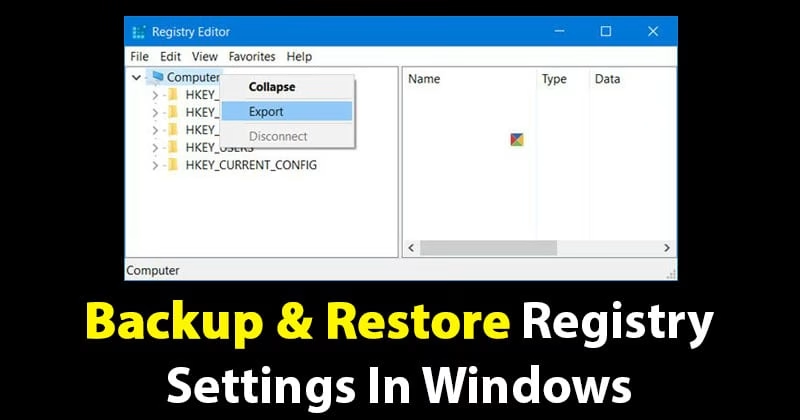
regedit, and press Enter - For full backup: Click File > Export, select “All” under Export range
- Name the file (e.g.,
Full_Backup_2024.reg) and save to external drive - For specific keys: Navigate to desired key (e.g.,
HKEY_CURRENT_USER\Software), right-click > Export
Restore: Double-click the .REG file > Yes, or use File > Import in Regedit.
Solution 2: System Restore (Full Protection)
Creates snapshot of registry + system files:
- Open Start Menu, type
Create a restore point - Click Create in System Properties > Name the restore point
- For restoration: Boot to Advanced Startup (Shift + Restart) > Troubleshoot > System Restore
Note: Requires System Protection enabled (default for C: drive).
Solution 3: PowerShell Backup (Automation)
Advanced users can script backups:
# Export entire registry
Reg export HKLM C:\Backup\HKLM.reg /y
Reg export HKCU C:\Backup\HKCU.reg /y

# Export specific key
Reg export "HKEY_LOCAL_MACHINE\SOFTWARE\Microsoft\Windows" C:\Backup\Windows_Key.reg
Restore: Replace export with import in the command.
Solution 4: Third-Party Tools (Efficiency)
Tools like EaseUS Todo Backup or CCleaner Pro offer:
- Scheduled registry backups
- Cloud storage integration
- One-click differential backup/restore
Best for: Users managing multiple systems or requiring version history.
People Also Ask:
- Q: How often should I backup the registry? A: Before any system change – weekly if modifying settings regularly.
- Q: Can I restore a registry backup from another PC? A: No – hardware/driver differences may cause boot failure.
- Q: Does System Restore erase my files? A: No – it only affects system files/apps.
- Q: Where are registry files stored? A:
C:\Windows\System32\config\(SAM, SECURITY, SOFTWARE, SYSTEM)
Protect Yourself:
- Always back up at two physical locations (USB + cloud)
- Create a restore point before installing new drivers
- Verify .REG file integrity via checksum before restoring
- Never download registry “cleaners” from untrusted sources
Expert Take:
“While GUI methods work for single PCs, enterprises should implement PowerShell scripts with version control – 78% of IT admins report faster recovery using tracked registry change histories.”
Tags:
- Windows registry backup before software installation
- Restore corrupted registry settings Windows 11
- Schedule automatic registry backup Windows 10
- Best registry backup software for Windows
- How to export specific registry keys
- Command prompt registry backup guide
*Featured image via source
Edited by 4idiotz Editorial System